


Configuring Woo Product Table to Display Variable Products for Each Variable
To showcase your products according to every single variable, follow these steps:
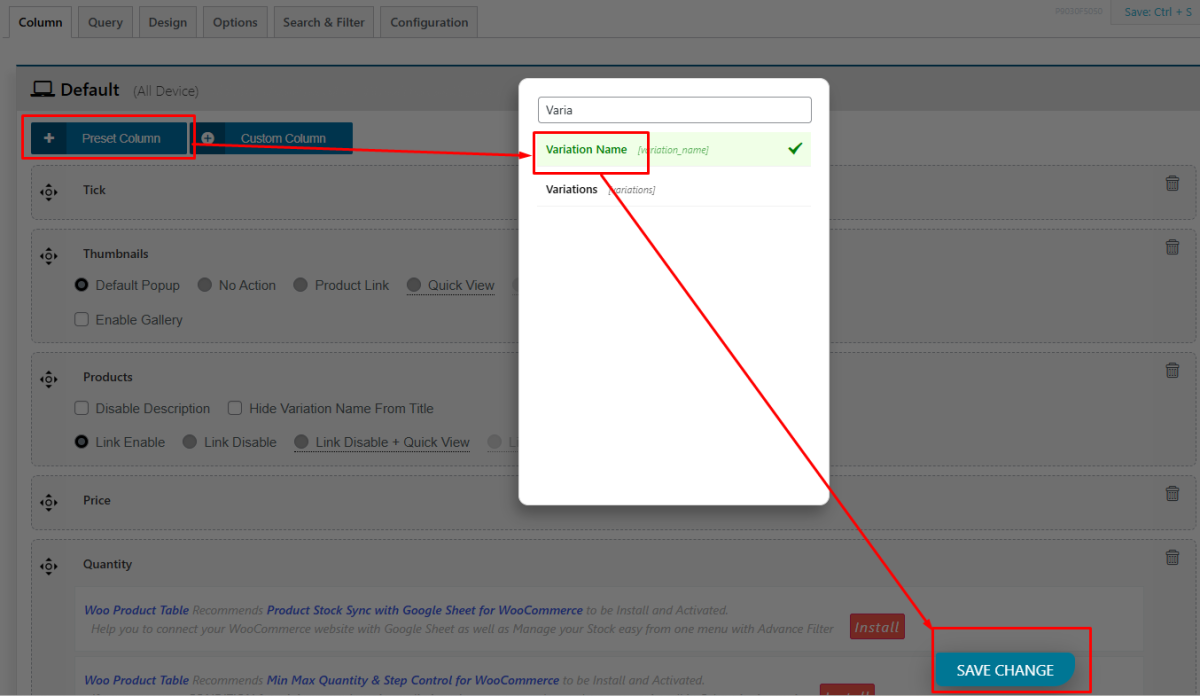
- Select the Variation Name column and Save Change:
First of all, add the Variation Name Column to your table

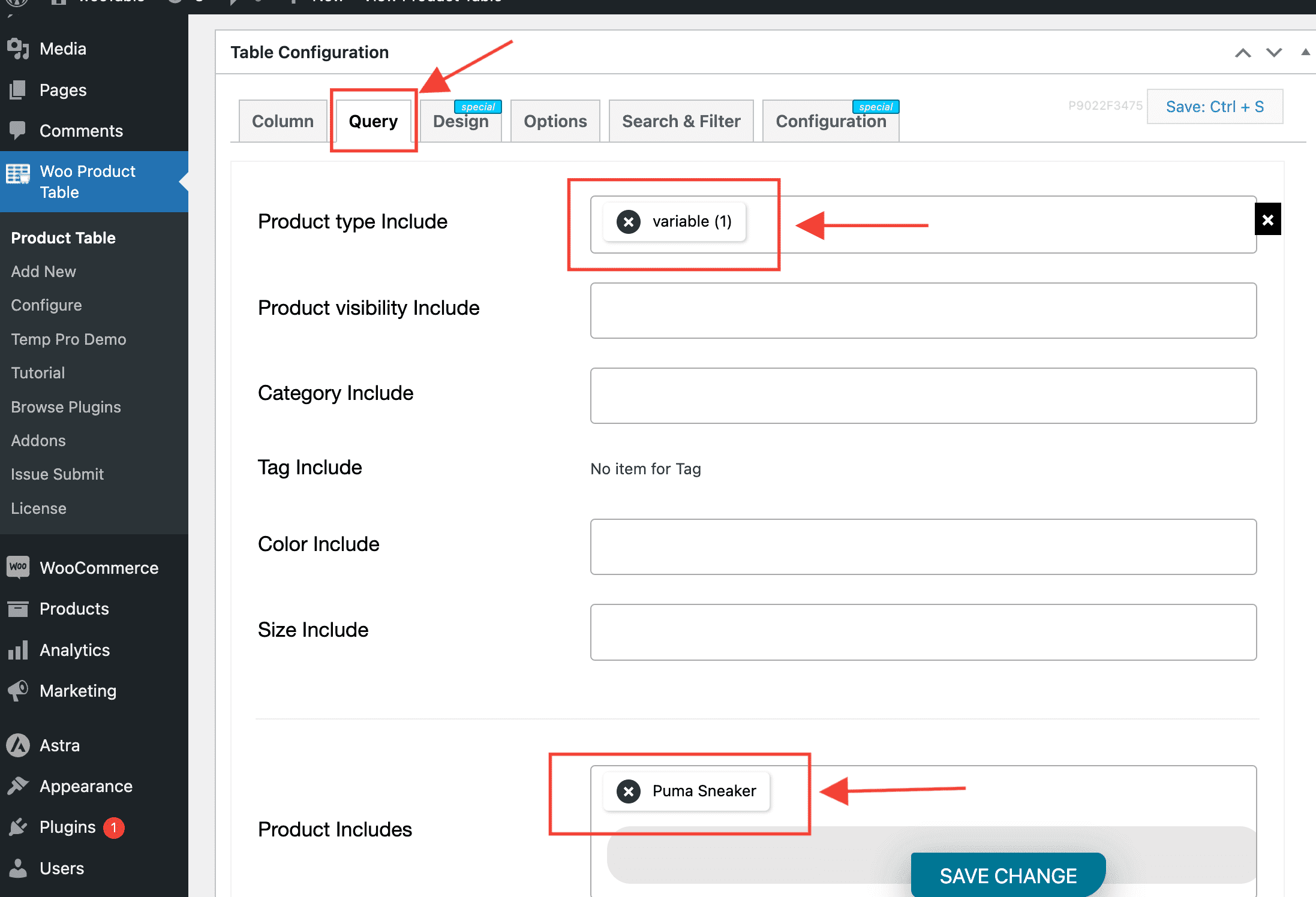
- Move to the Query Tab:
- In the Query tab, locate the "Product Type Include" option.
- Select "Variable" from the dropdown list. This ensures that only variable products are included in the table.
- Additionally, you can choose "Variable Product" from the "Product Include" dropdown list to specifically include variable products. - Select Product Type:
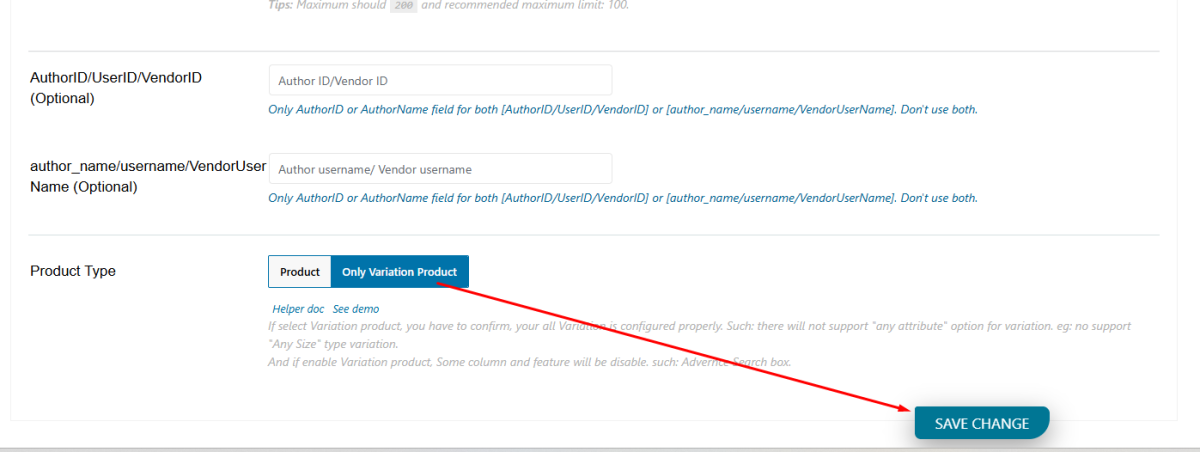
- Scroll further down in the Query tab to find the "Product Type" section.
- In the Product Type section, ensure to select the "Only Variable Product" option. This ensures that the table will display only variable products. - Save changes and see the output:
You'll configure your product table to display variable products according to every single variable.
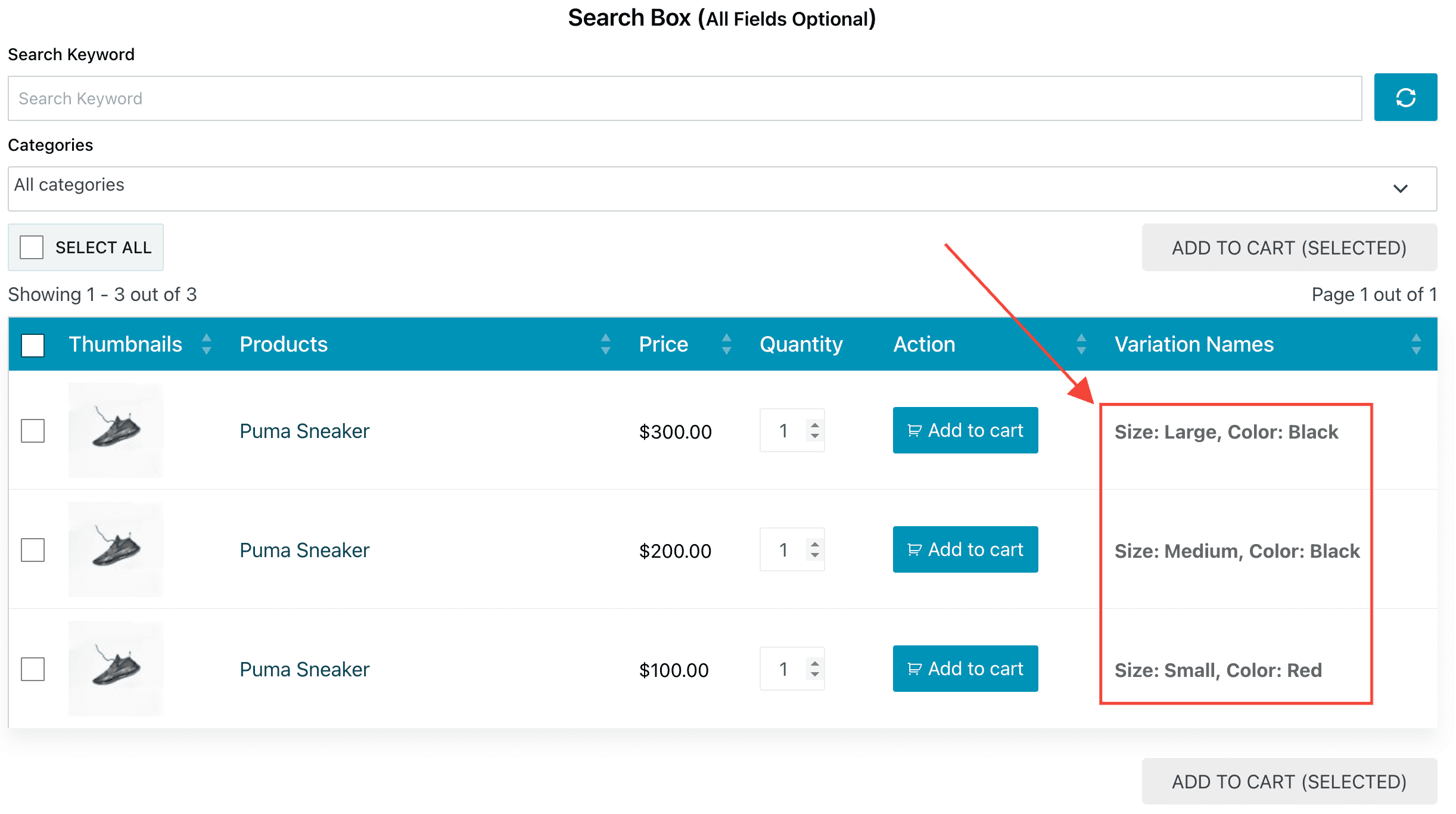
Now you can see a variable product table for WooCommerce variable products. Demo
